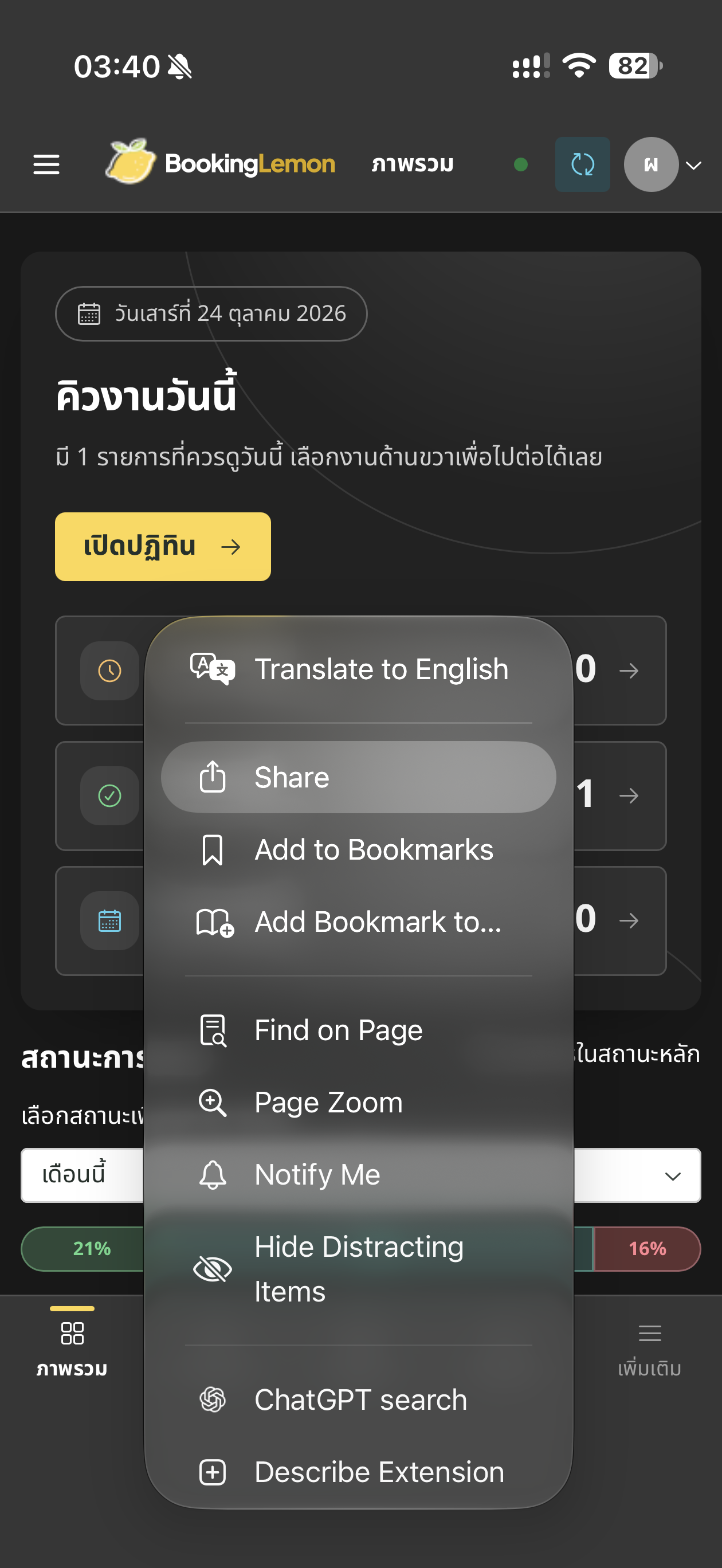
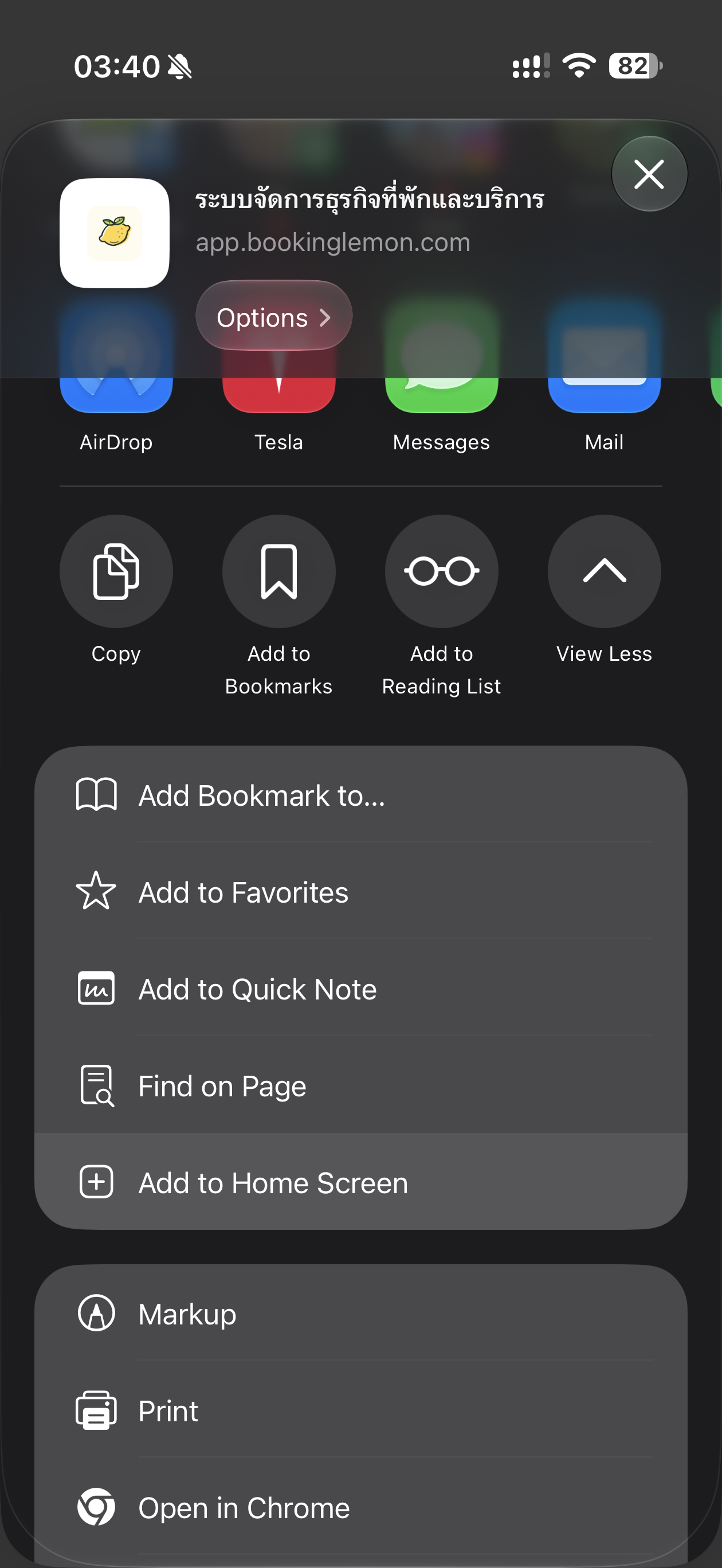
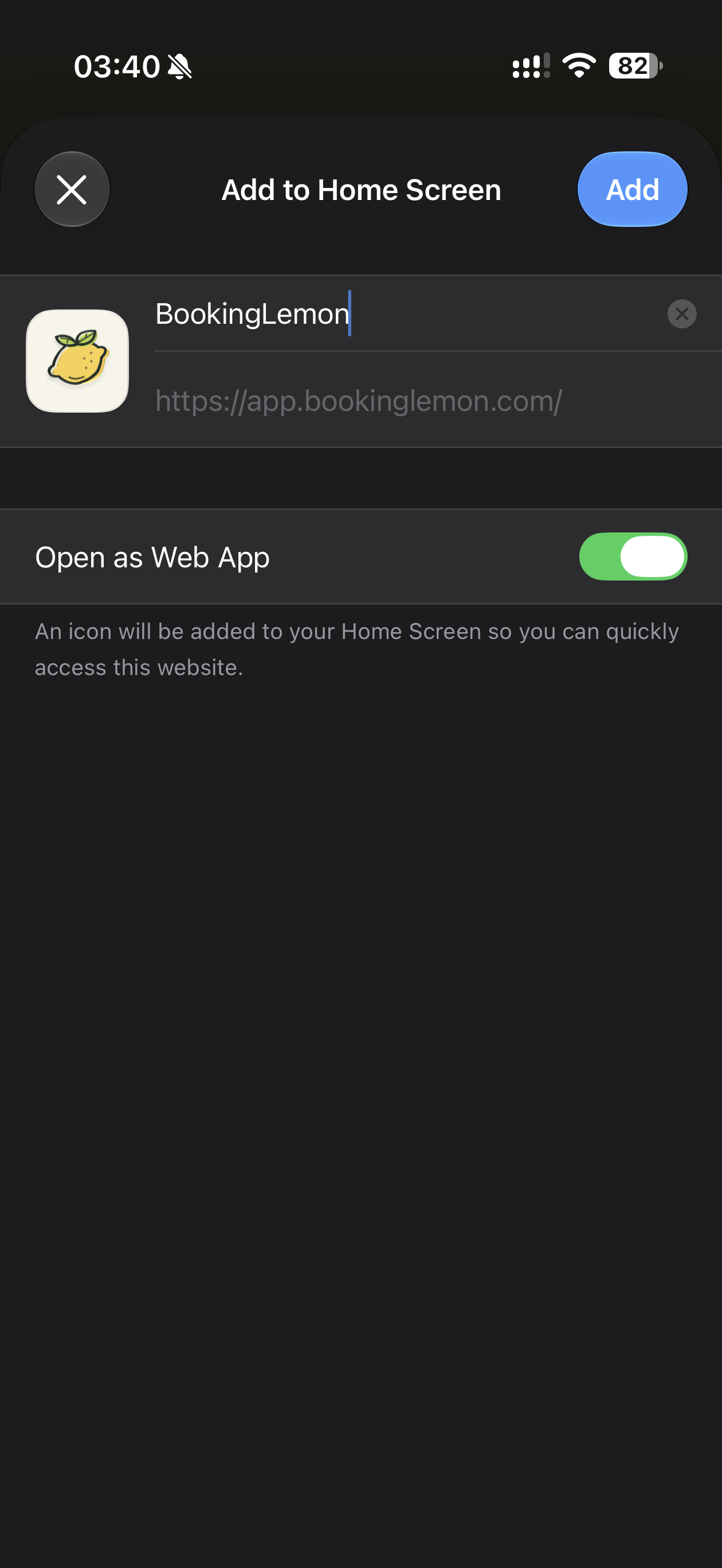
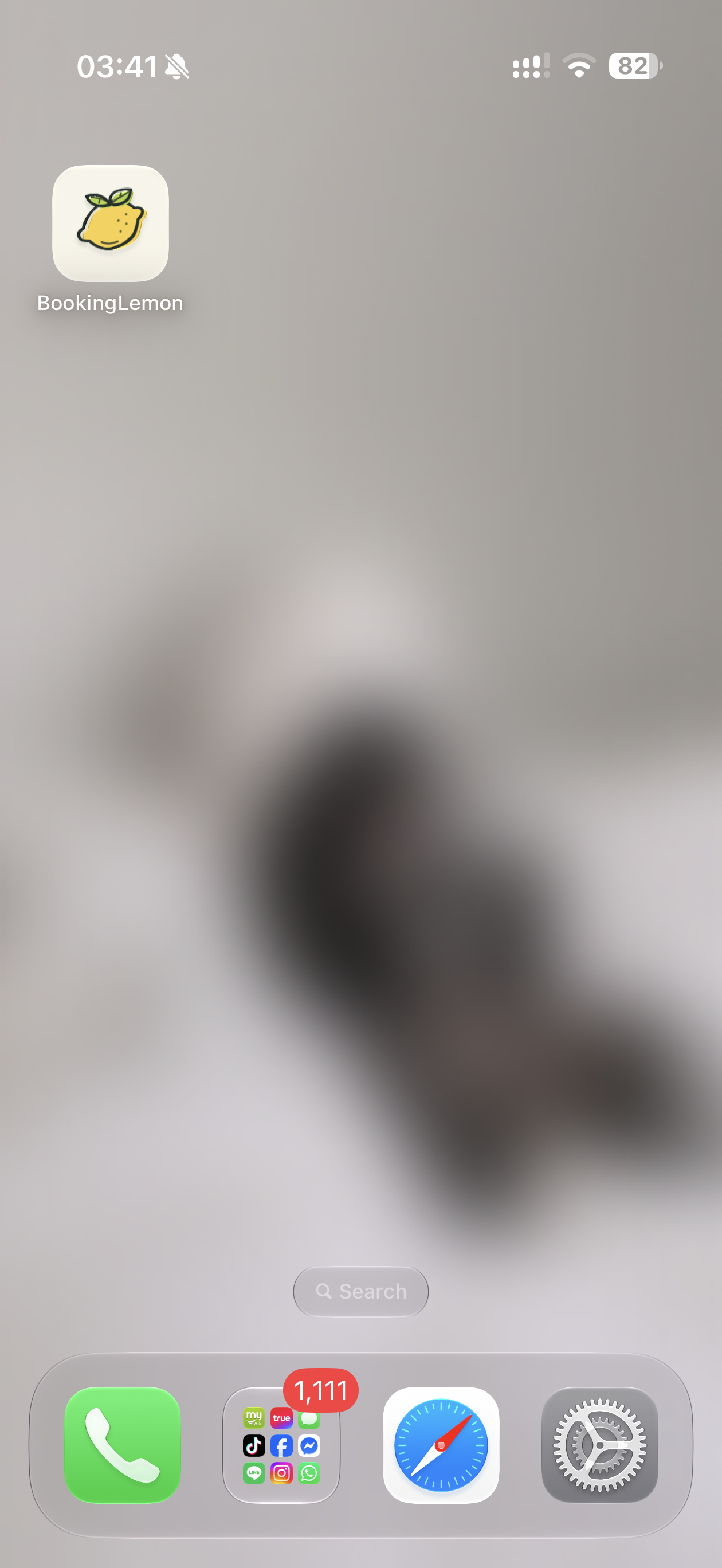
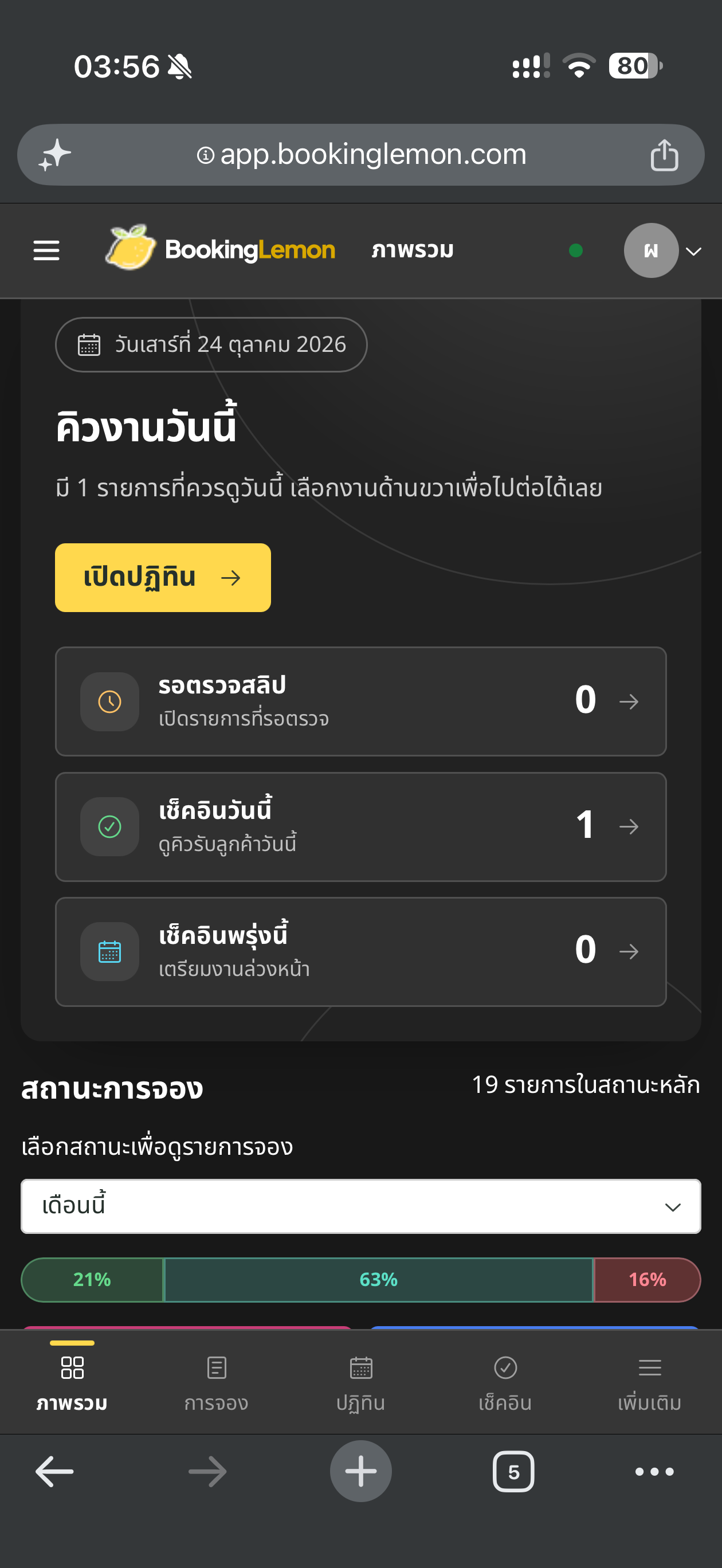
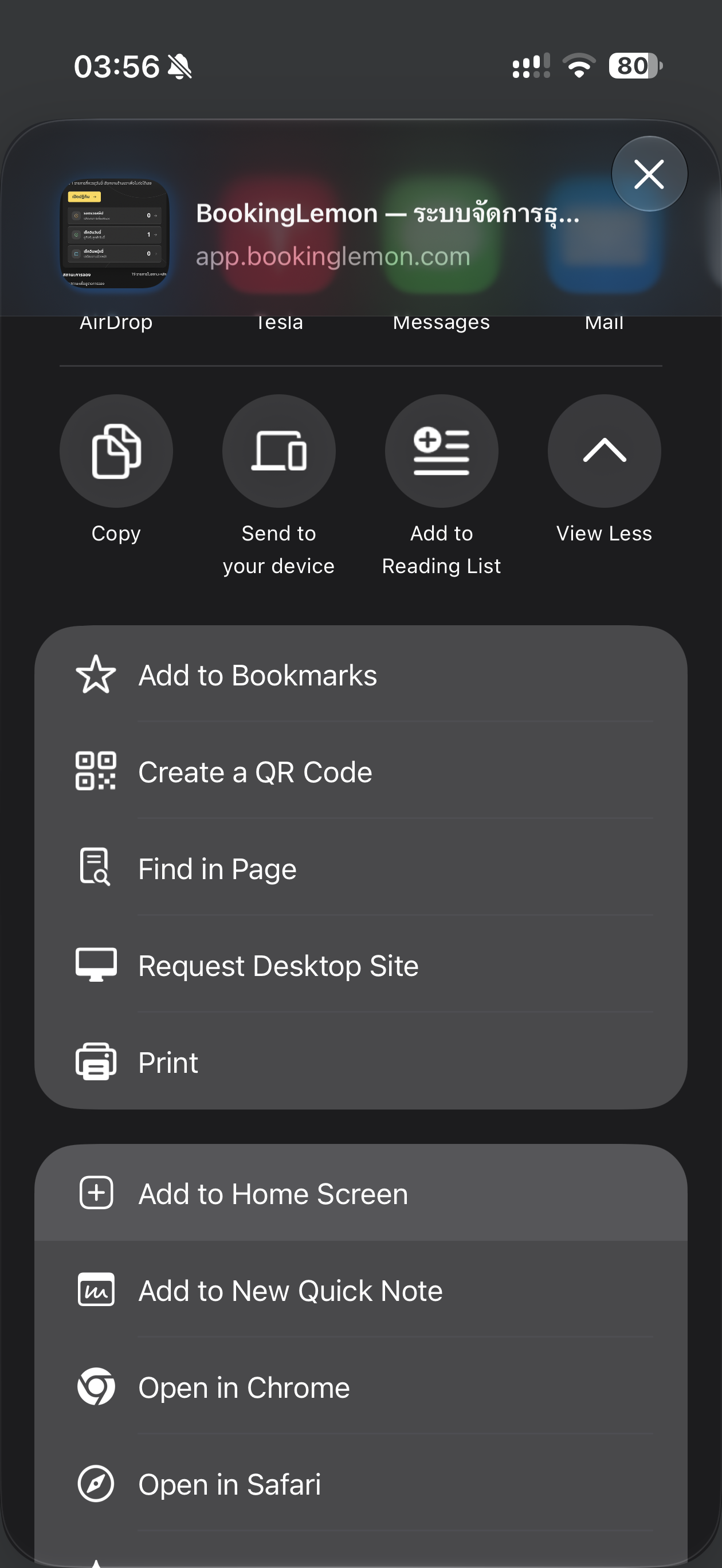
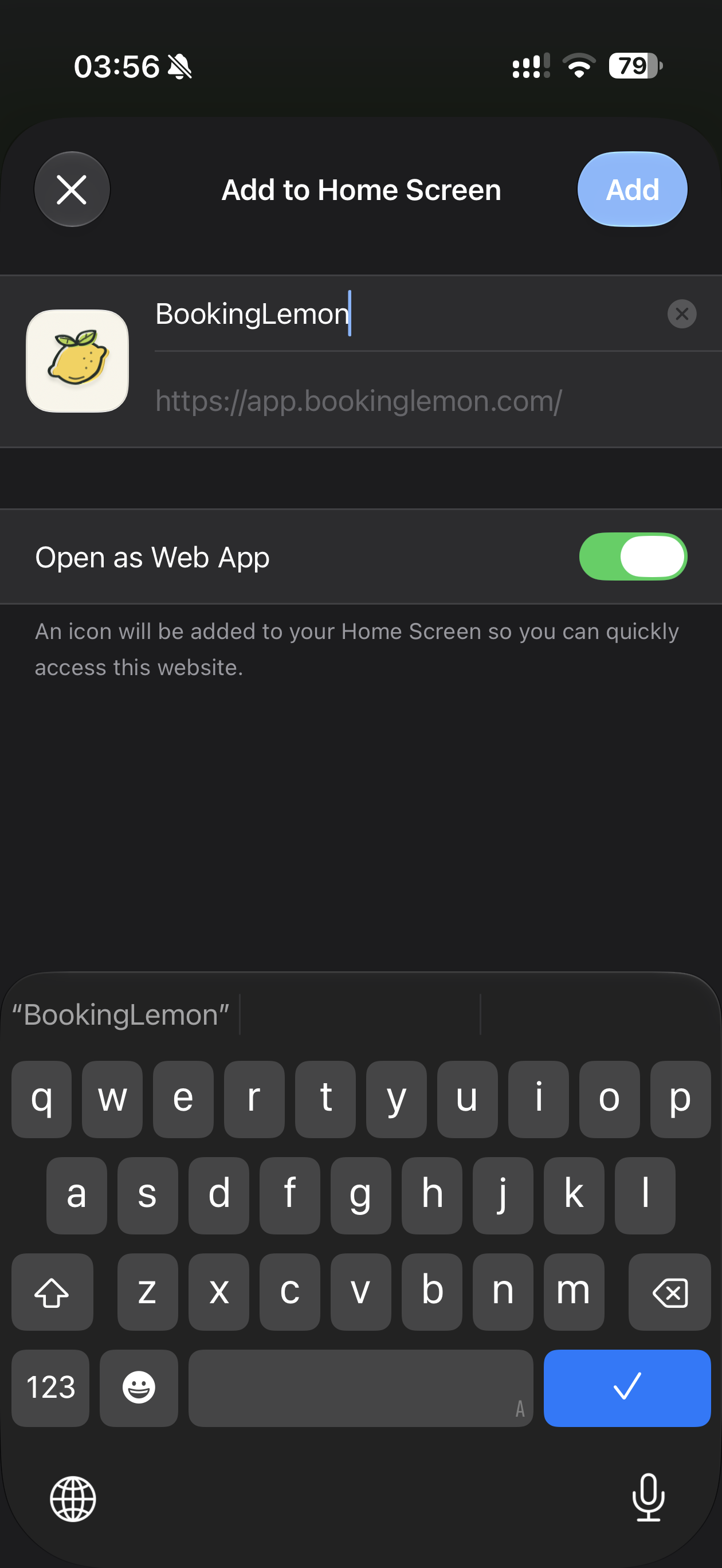
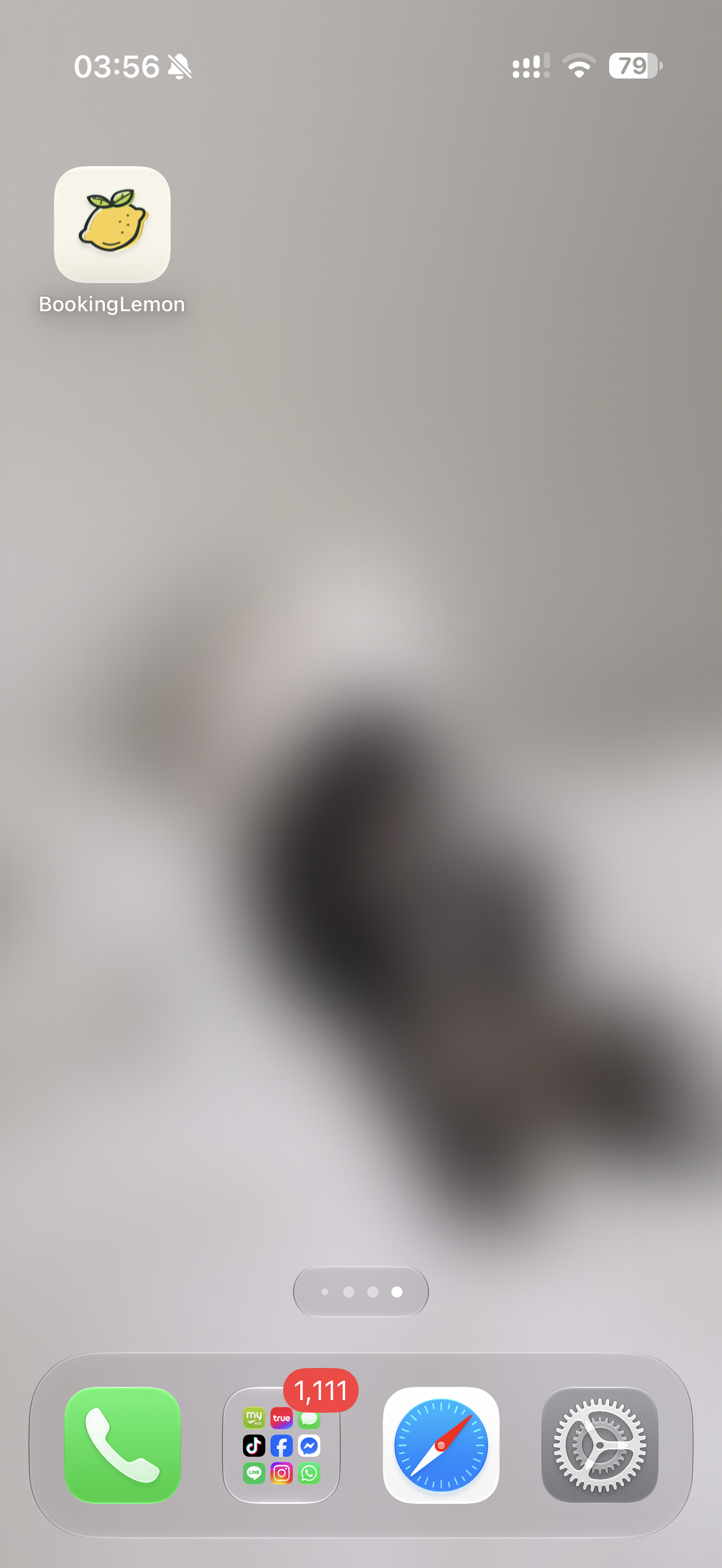
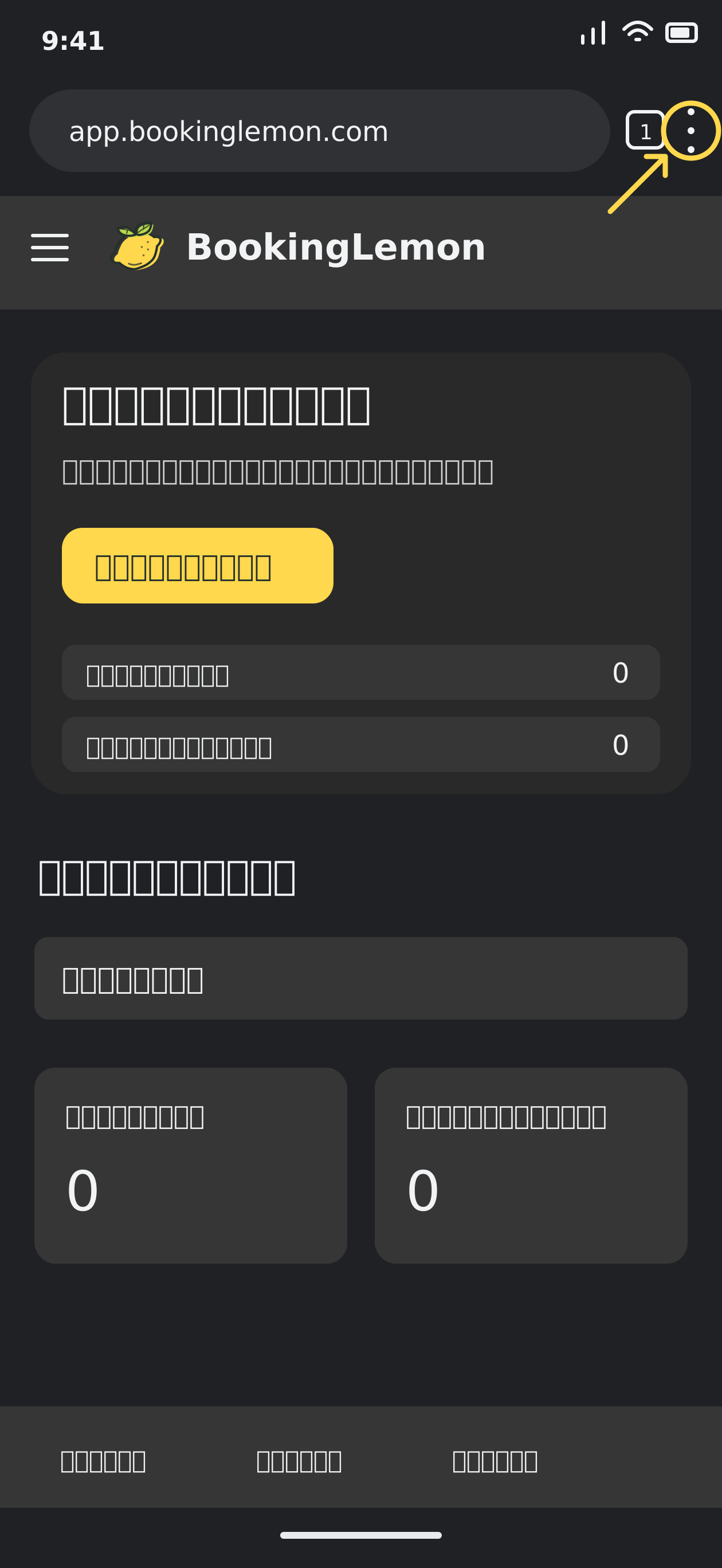
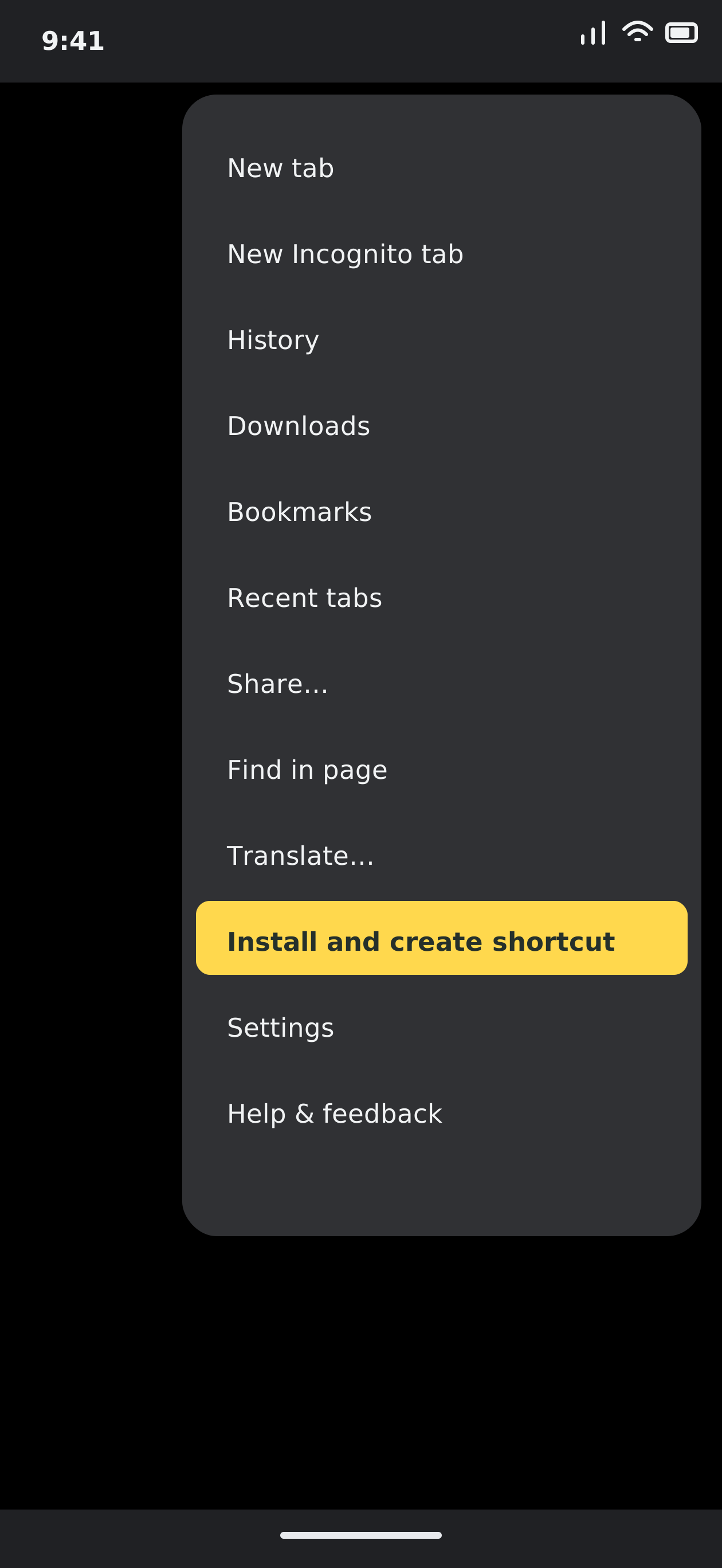
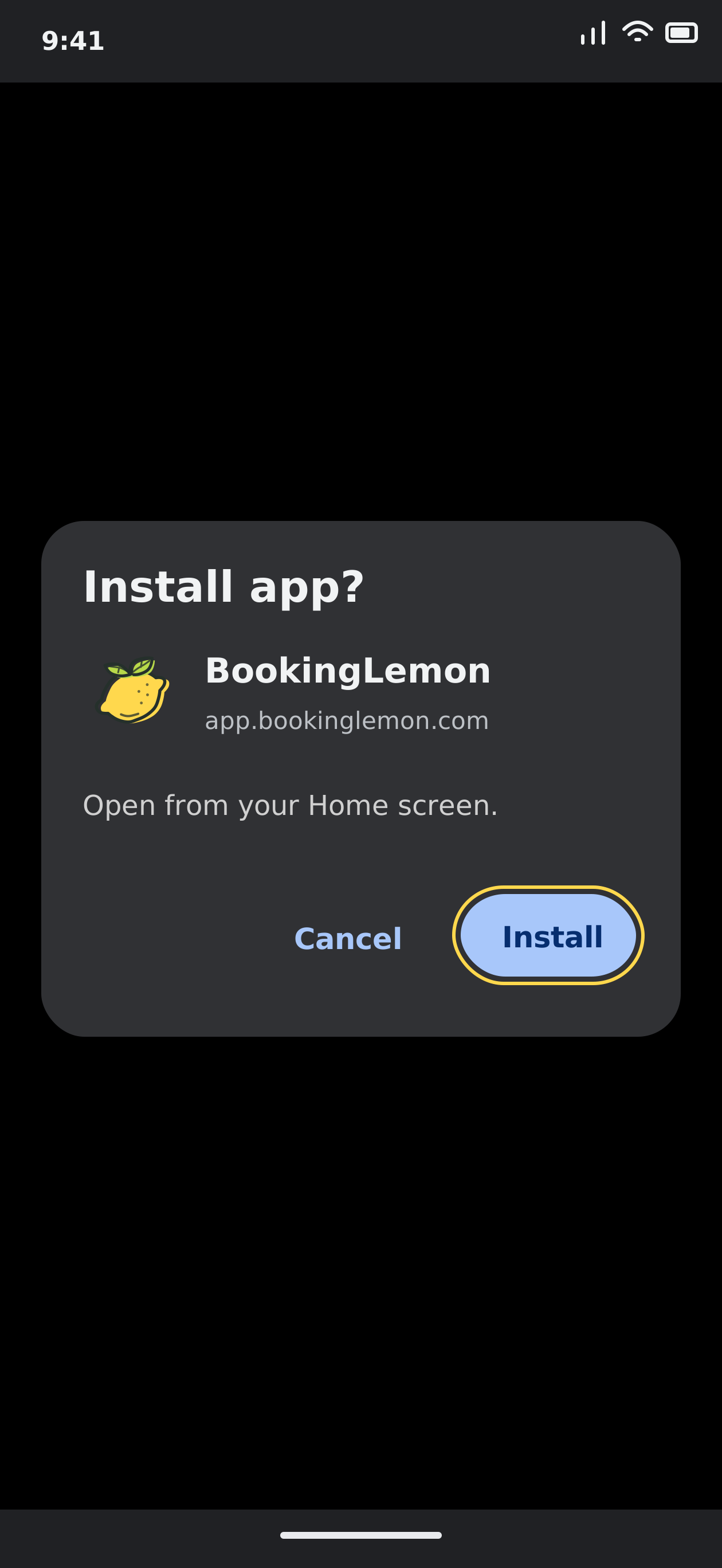
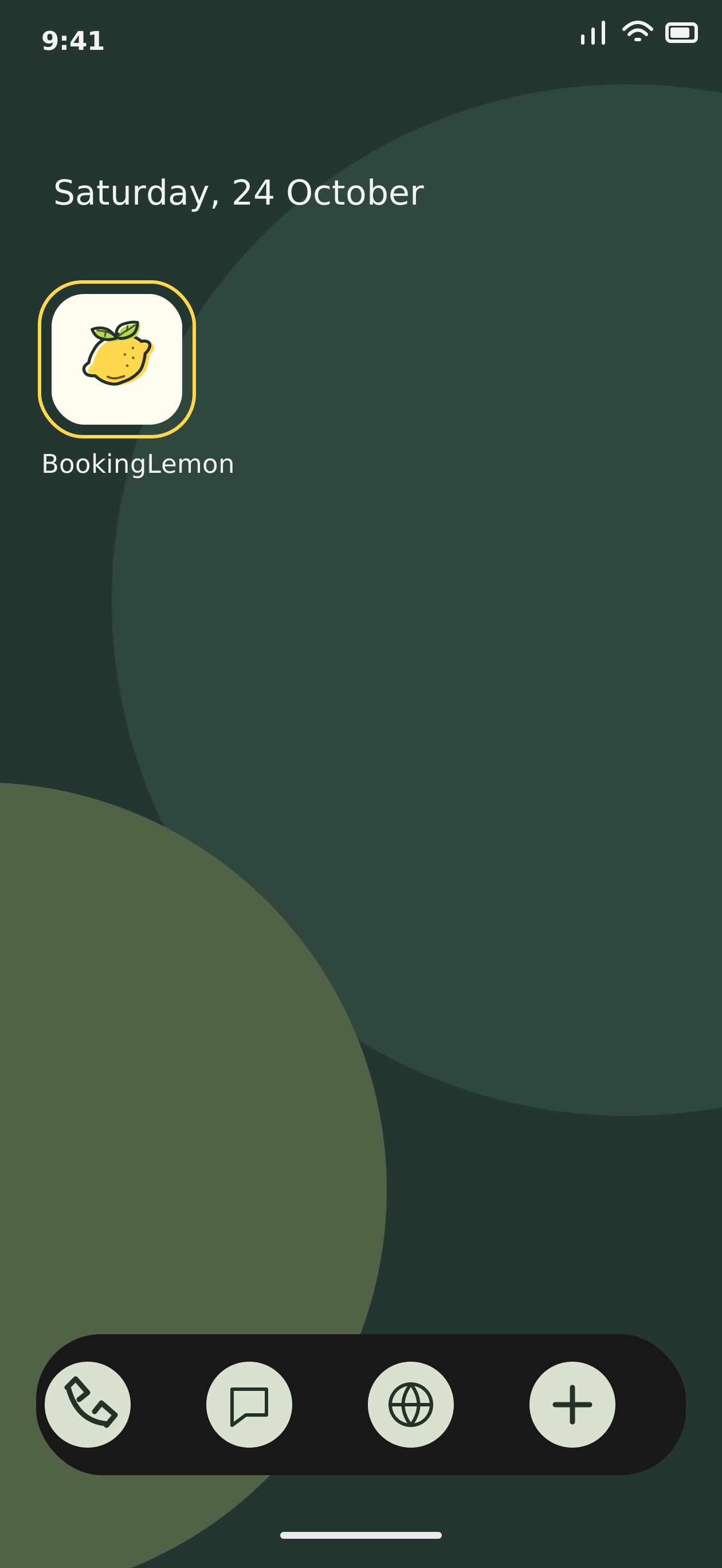
เปิด app.bookinglemon.com ใน Chrome แล้วทำตามภาพ 1–4Open app.bookinglemon.com in Chrome and follow steps 1–4.
ภาพประกอบขั้นตอน Android · เมนูอาจต่างกันตามรุ่นAndroid step illustrations · Menus may vary by version
01
แตะเมนูจุดสามจุดTap the three-dot menu
เปิด app.bookinglemon.com ใน Chrome แล้วแตะเมนูจุดสามจุดมุมขวาบนOpen app.bookinglemon.com in Chrome, then tap the three-dot menu at the top right.
02
เลือก Install and create shortcutChoose Install and create shortcut
เลือก “Install and create shortcut” แล้วเลือก “Install” บางรุ่นใช้ชื่อ “เพิ่มลงในหน้าจอหลัก”Choose “Install and create shortcut”, then “Install”. Some versions show “Add to Home screen”.
03
ยืนยันติดตั้งแอปConfirm installation
ตรวจชื่อ BookingLemon แล้วแตะ “Install” หรือ “ติดตั้ง”Check the name BookingLemon, then tap “Install”.
04
แตะไอคอนเพื่อเปิดแอปTap the icon to open the app
กลับหน้าจอโฮม แล้วแตะไอคอน BookingLemonReturn to your Home Screen and tap the BookingLemon icon.
แตะภาพเพื่อดูขนาดเต็ม ภาพประกอบหน้าจอ Android ชื่อและหน้าตาเมนูอาจต่างกันตามรุ่นTap an image to view full size. Android screen illustrations. Menu names and appearance may vary by version.
ต้องเปิดแยกบนมือถือหรือเบราว์เซอร์แต่ละเครื่องที่ต้องการรับการแจ้งเตือนEnable this separately on each phone or browser where you want notifications.
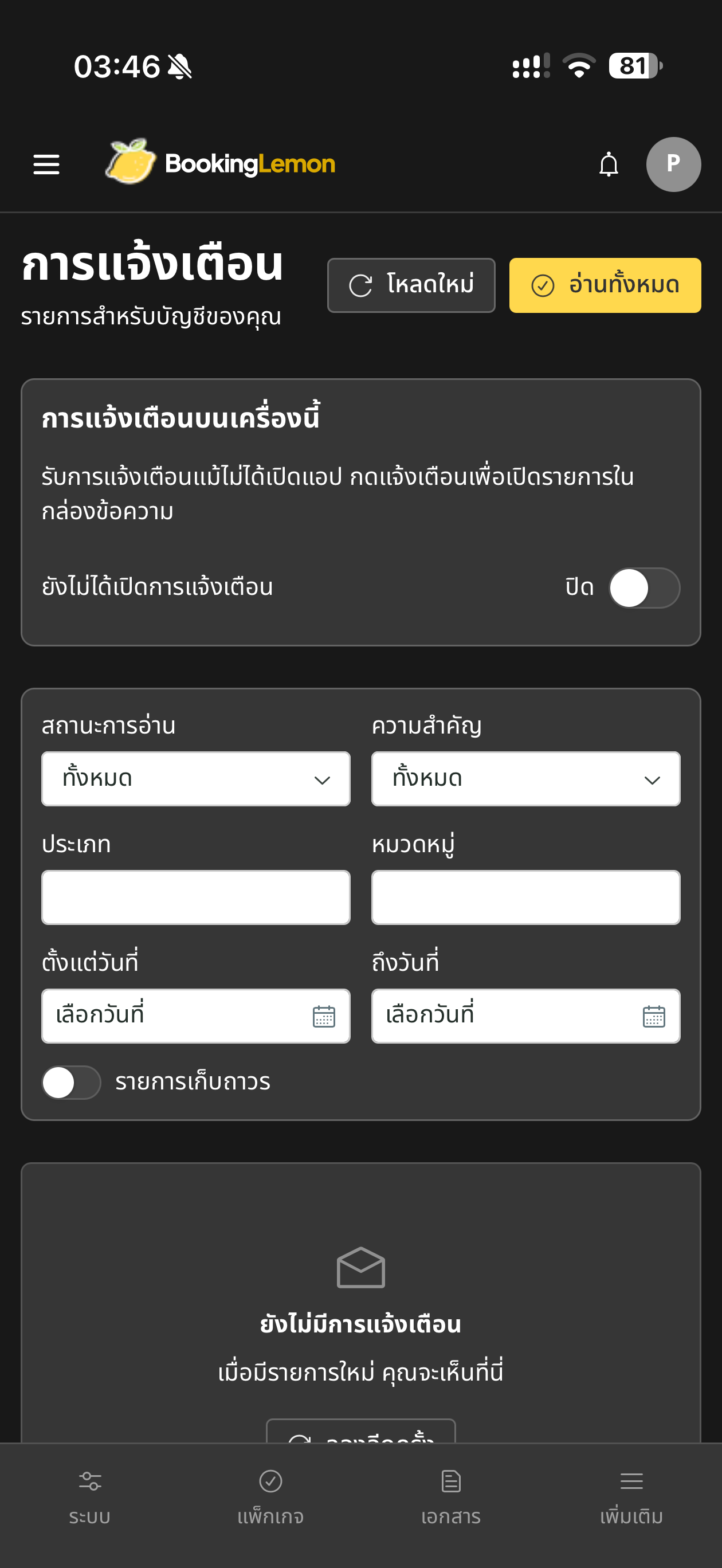
ตัวอย่างหน้าจอ · ลองแตะสวิตช์ในภาพScreen demo · Try the switch in the image
ตัวอย่าง: ปิดการแจ้งเตือนDemo: notifications off
ภาพหน้าจอจริงตามต้นฉบับ ปุ่มนี้เปลี่ยนภาพตัวอย่างเท่านั้นOriginal app screenshots. This switch only changes the demo image.
03 / HELP
เปิดแล้ว แต่ยังไม่ได้รับการแจ้งเตือน?Enabled, but not receiving notifications?
เคยกด “ไม่อนุญาต”Previously chose “Don’t allow”
เปิดการตั้งค่ามือถือหรือการตั้งค่าเว็บไซต์ใน Chrome แล้วอนุญาตการแจ้งเตือนสำหรับ BookingLemon จากนั้นกลับมาเปิดสวิตช์ในแอปอีกครั้งAllow BookingLemon notifications in your phone settings or Chrome site settings, then return to the app and enable its switch again.
ไม่เห็นสวิตช์ หรือกดไม่ได้Switch missing or unavailable
บน iPhone ให้เพิ่มแอปบนหน้าจอโฮมแล้วเปิดจากไอคอน อัปเดตระบบและเบราว์เซอร์ หากแอปแจ้งว่าระบบยังไม่เปิดให้ใช้งาน ให้ลองใหม่ภายหลังOn iPhone, add the app to your Home Screen and open its icon. Update your system and browser. If the app says the service is unavailable, try again later.
ตรวจการตั้งค่ามือถือด้วยCheck your phone settings too
ตรวจว่าเปิดอนุญาตการแจ้งเตือนของแอปหรือ Chrome แล้ว และโหมดห้ามรบกวนหรือโหมดโฟกัสไม่ได้ซ่อนการแจ้งเตือนCheck that app or Chrome notifications are allowed, and that Do Not Disturb or Focus is not hiding them.